Error [65] An internal error occurred, please restart the loader

“An internal error occurred, please restart the loader”
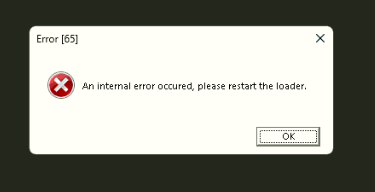
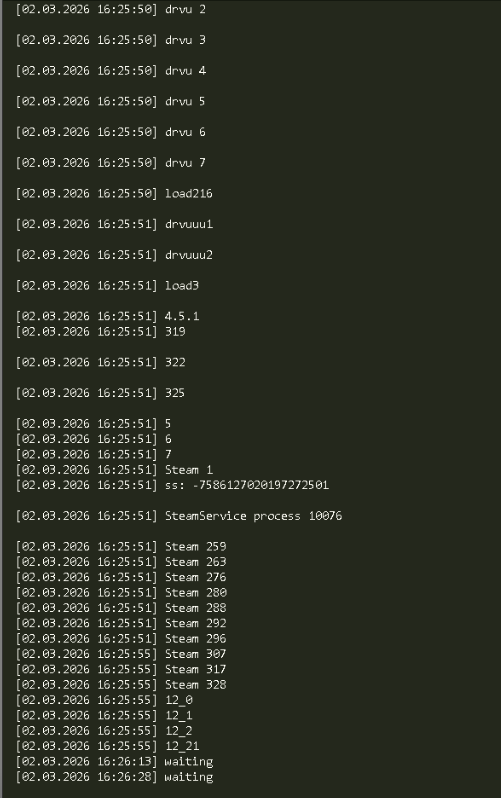
If you see this error: and your nl.log ends with a line similar to:

12_21/waiting

the loader is usually unable to connect to our servers. This is most commonly caused by a network or routing issue.

Solution

1. Change the server

Try launching the loader with a different server.

  • If you are outside Russia, use:

    -server 0
    
    
  • If you are in Russia, use:

    -server 1


How to add the -server launch parameter

  1. Locate the loader executable (Loader.exe).

  2. Right-click it and select Create shortcut.

  3. Right-click the newly created shortcut and select Properties.

  4. In the Target field, add a space followed by the desired parameter after the closing quotation mark.

Example:

"C:\Path\To\Loader.exe" -server 0

or

"C:\Path\To\Loader.exe" -server 1

  1. Click Apply, then OK.

  2. Launch the loader using the shortcut you just created.


2. Check your VPN or proxy

If changing the server does not help, the problem is most likely related to your internet connection.

  • If you are using a VPN or proxy, disable it and try again.

  • If you are not using a VPN, try connecting through one instead.

For users in Russia:

  • If you are already using a VPN, first try disabling it.

  • If the issue persists, try a different VPN provider or server.


3. Optional network troubleshooting

If the issue still persists, you can also try the following:

Reset the Windows hosts file

Make sure the following file does not contain any custom entries:

C:\Windows\System32\drivers\etc\hosts

Change your DNS server

Configure your network adapter to use Google’s public DNS:

  • Primary DNS: 8.8.8.8

  • Secondary DNS: 8.8.4.4


Still not working?

If none of the solutions above resolve the issue, please create a ticket in the Client Support section:

https://neverlose.cc/tickets

Include the following information:

  • The nl.log file located in your temporary folder:

    1. Press Windows + R

    2. Type:

      %temp%
      
      
    3. Press Enter

    4. Find the file named nl.log and attach it to your ticket.

  • Your Windows version (winver):

    1. Press Windows + R

    2. Type:

      winver
      
      
    3. Press Enter

    4. Take a screenshot of the window and attach it to your ticket.

Sharing files

Any file can be uploaded to Imgur, Google Drive (as a share link, not a download link), or a text uploader like Pastebin (as unlisted).

«An internal error occurred, please restart the loader»


Если вы встретили эту ошибку, а nl.log заканчивается строкой, похожей на:

12_21/waiting

это означает, что лоадр не может подключиться к нашим серверам. Чаще всего это вызвано проблемой с сетью.

Решение

1. Смените сервер

Попробуйте запустить лоадер с другим сервером.

  • Если вы находитесь за пределами России, используйте:

    -server 0
    
    
  • Если вы находитесь в России, используйте:

    -server 1


Как добавить параметр запуска -server

  1. Найдите файл лоадера (Loader.exe).

  2. Нажмите на него правой кнопкой мыши и выберите Создать ярлык.

  3. Нажмите правой кнопкой мыши на созданный ярлык и выберите Свойства.

  4. В поле Объект добавьте пробел и нужный параметр после закрывающей кавычки.

Пример:

"C:\Path\To\Loader.exe" -server 0

или

"C:\Path\To\Loader.exe" -server 1

  1. Нажмите Применить, затем ОК.

  2. Запустите лоадер через созданный ярлык.


2. Проверьте VPN или прокси

Если смена сервера не помогла, проблема, скорее всего, связана с вашим интернет-соединением.

  • Если вы используете VPN или прокси, отключите их и попробуйте снова.

  • Если вы не используете VPN, попробуйте включить его.

Для пользователей из России:

  • Если вы уже используете VPN, сначала попробуйте отключить его.

  • Если это не помогло, попробуйте другой VPN или другой сервер VPN.


3. Дополнительные действия по устранению неполадок

Если проблема сохраняется, попробуйте также выполнить следующие действия.

Сбросьте файл Windows hosts

Убедитесь, что следующий файл не содержит записей:

C:\Windows\System32\drivers\etc\hosts

Измените DNS-сервер

Настройте сеть на использование публичных DNS-серверов Google:

  • Основной DNS: 8.8.8.8

  • Дополнительный DNS: 8.8.4.4


Всё ещё не работает?

Если ни одно из приведённых выше решений не помогло, создайте тикет в разделе Client Support:

https://neverlose.cc/tickets

Приложите следующую информацию:

  • Файл nl.log, расположенный в папке %temp%:

    1. Нажмите Windows + R.

    2. Введите:

      %temp%
      
      
    3. Нажмите Enter.

    4. Найдите файл nl.log и прикрепите его к тикету.

  • Версию вашей Windows (winver):

    1. Нажмите Windows + R.

    2. Введите:

      winver
      
      
    3. Нажмите Enter.

    4. Сделайте скриншот открывшегося окна и прикрепите его к тикету.

Загрузка файлов

Любой файл можно загрузить на Imgur, Google Drive (в виде ссылки с общим доступом, а не ссылки на скачивание) или текстовый хостинг, например Pastebin (с видимостью Unlisted).

1 Like